Snowflake
Connect v0 to Snowflake to build apps and dashboards with your warehouse data, query Snowflake, and deploy apps to Snowflake.
The Snowflake integration is currently in beta. A team owner must configure a Snowflake account for your v0 team before members can connect.
The Snowflake integration lets you build data apps with the data your Snowflake role can access. After you connect Snowflake, v0 can inspect schemas, query tables, generate dashboards or reports, preview connected apps, and deploy apps to Snowflake.
Step 1: Prepare your Snowflake account
Before your team can connect v0 or deploy apps to Snowflake, a Snowflake account admin must enable the Snowflake App Runtime and grant the Vercel integration access to the roles that will use it.
Enable App Runtime
- In Snowsight, select your name in the lower-left corner, then Settings.
- Under Account, select Apps.
- If the page shows App development is not set up, click Begin Setup and complete the setup flow.
Alternatively, see Snowflake App Runtime account admin setup for full details.
Grant roles access to the Vercel integration
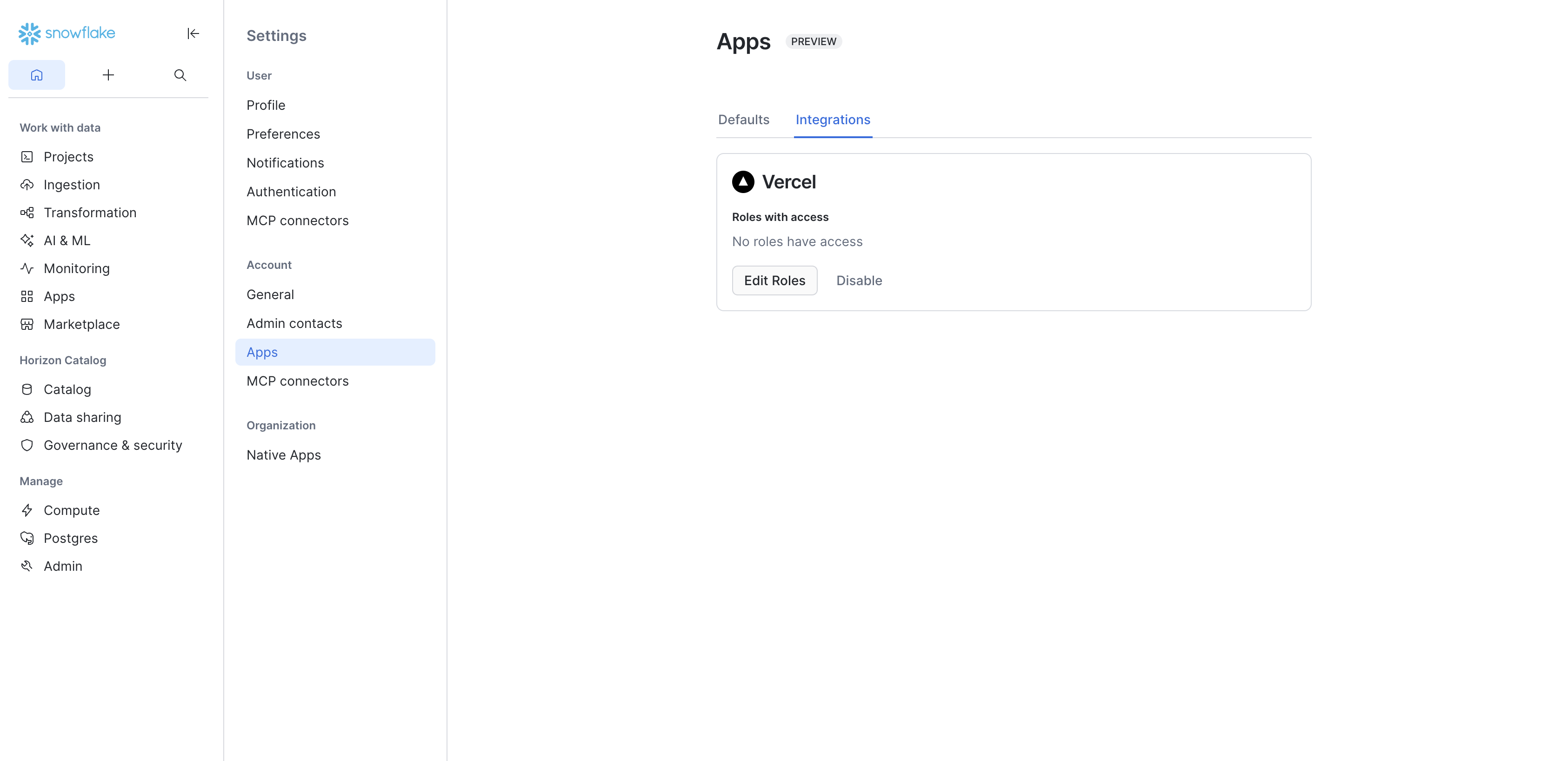
This step determines who on your team can use the v0 Snowflake integration. Only Snowflake users with one of the permitted roles will be able to connect. After enabling the App Runtime, the Apps page shows a Defaults tab where you can configure the destination database, schema, query warehouse, and which roles have access.
- On the Apps page, click the Integrations tab.
- Find the Vercel card. If it shows Not created yet, click Setup.
- In the Setup Vercel dialog, select the roles that should have access to the integration.
- Click Setup.
The Vercel card will update to show Roles with access and the selected roles. Use Edit Roles to change access or Disable to remove the integration.
Step 2: Add Snowflake to your v0 team
Team owners add the Snowflake account identifiers that members are allowed to connect. This makes those accounts available as options when members connect, but does not grant anyone access — that is controlled by the roles permitted in Step 1.
Adding an account identifier does not sign in any team member, grant Snowflake data access, or change Snowflake permissions. Members whose Snowflake user does not have a role permitted in Step 1 cannot connect, even after this step is complete.
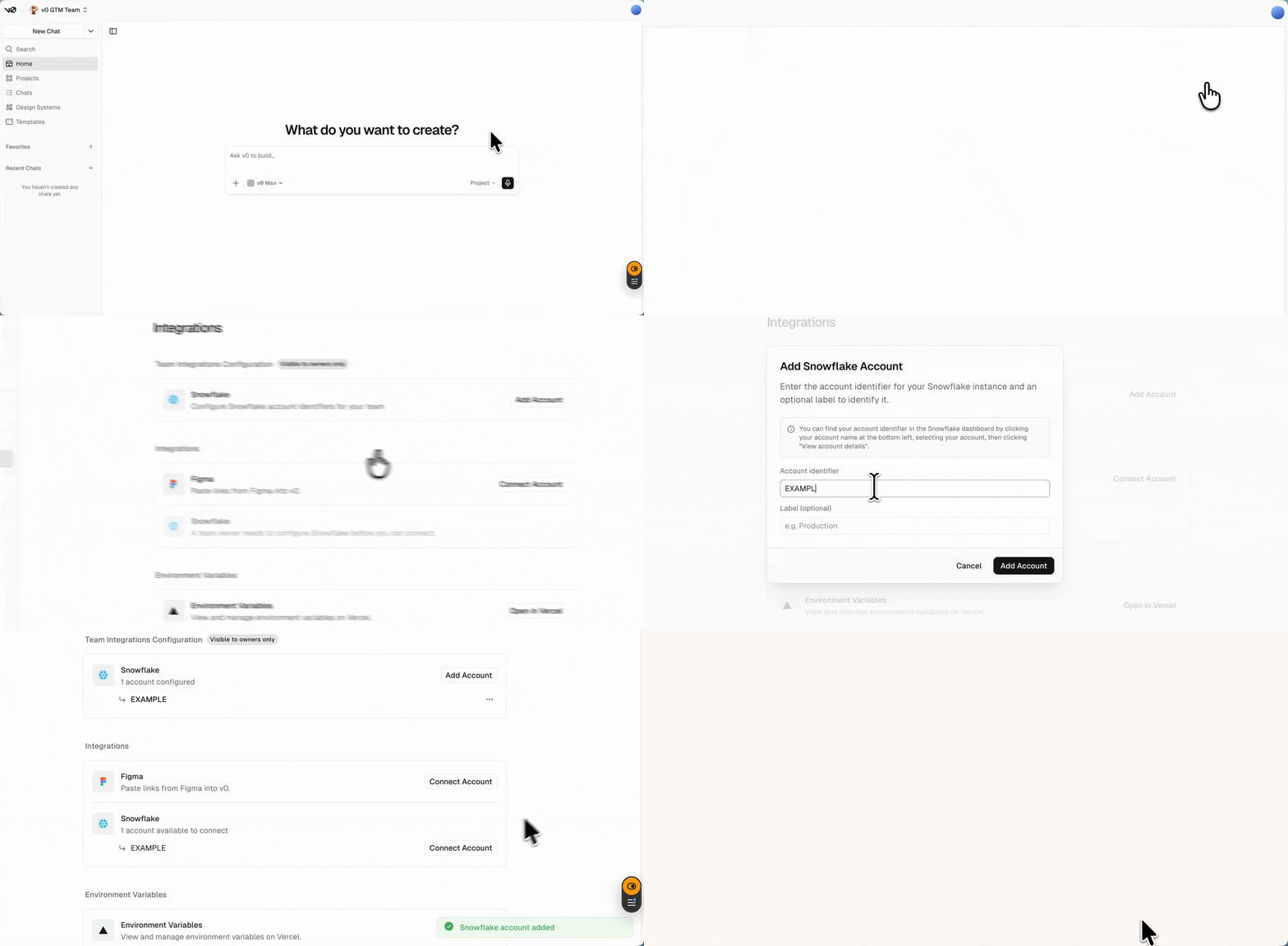
- Open your v0 team settings.
- Go to Integrations.
- Find Snowflake.
- Click Add Account.
- Enter the account identifier portion of your Snowflake URL — for example,
myorg-account123fromhttps://myorg-account123.snowflakecomputing.com. Do not includehttps://or.snowflakecomputing.com. See Snowflake's Account identifiers guide if needed. - Optionally add a label, such as
ProductionorAnalytics.
Step 3: Connect your Snowflake user
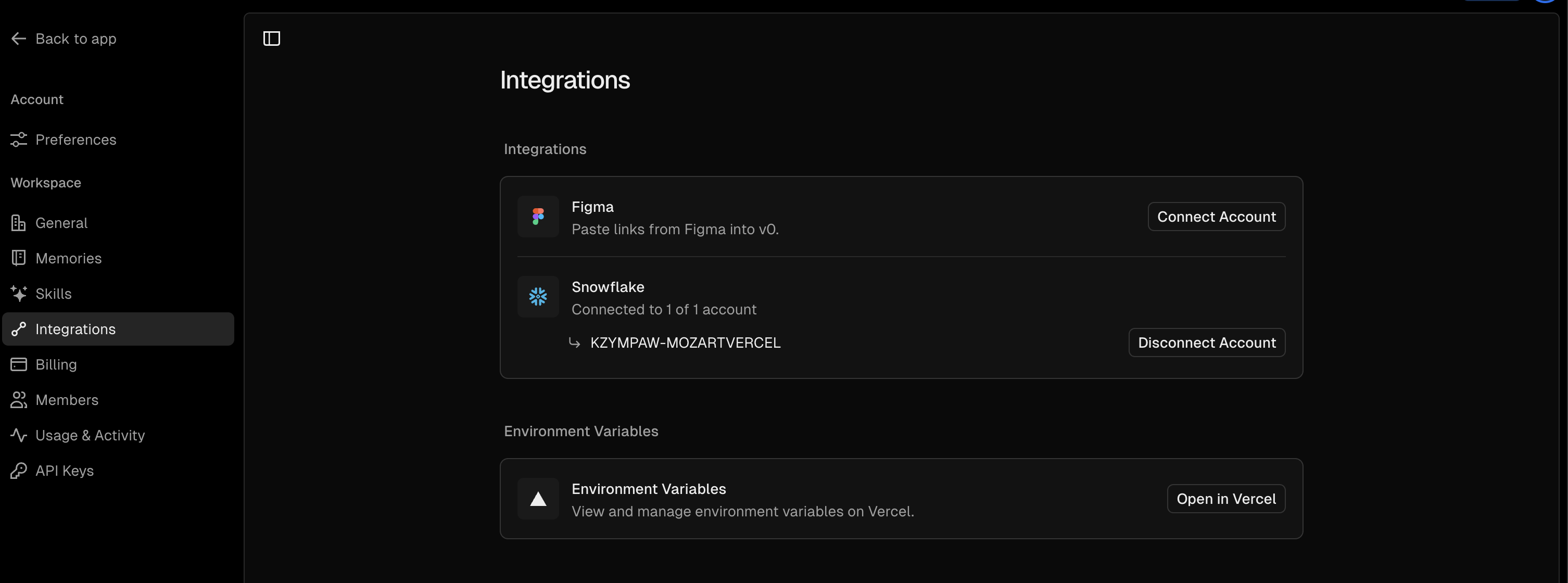
After a team owner configures an account, team members connect their own Snowflake user via OAuth. Each member connects independently — teammates do not inherit access from another member's connection.
Snowflake access is entirely role-based (RBAC), not user-based. Your Snowflake user identity only determines which roles are available to choose from — all data access, read/write permissions, and visibility into databases, schemas, and tables are determined entirely by the selected role. Only roles that the Snowflake account admin permitted in Step 1 will appear in the OAuth flow.
- Open a chat in the v0 team.
- Ask v0 to create something with Snowflake, such as
Create an application using Snowflake that shows AI gateway usage by models. - When v0 shows the Snowflake card, click Connect.
- Select the Snowflake account for the chat.
- Complete the Snowflake OAuth flow and choose a role with access to the data you want v0 to use.
By connecting, you authorize v0 to access Snowflake through your selected role and allow v0 to send Snowflake integration usage information to Snowflake. That information is governed by your terms with Snowflake.
You can also connect manually from the chat Connect panel by choosing Snowflake.
Step 4: Build with Snowflake data
Before writing any application code, it's worth exploring your data first. Use v0's data tools to browse what your role can actually see — this gives v0 the exact database, schema, table, and column names to use when generating code.
Explore tables and run SQL
Connected Snowflake chats can use v0's data tools to:
- Browse accessible databases, schemas, and tables.
- Preview table rows with pagination.
- Run custom SQL queries.
- Use query results as context for future prompts.
Large warehouses and broad queries can be slow or expensive. Prefer targeted queries, explicit database and schema names, and LIMIT clauses while exploring data.
Generate application code
Ask v0 to inspect your Snowflake data before generating application code. This helps v0 use the exact database, schema, table, and column names available to your role.
Example prompts:
Inspect my Snowflake schemas and show me which tables look useful for a revenue dashboard.Build an analytics dashboard from Snowflake. First inspect the table schemas and sample rows, then use the confirmed columns.Create a report from MY_DATABASE.PUBLIC.ORDERS grouped by week. Validate the columns before writing the query.For generated applications, Snowflake queries must run on the server. v0 handles the connected Snowflake credentials for preview and deployment, so avoid putting Snowflake tokens in client-side code.
Step 5: Deploy to Snowflake
Make sure your chat is connected to Snowflake (Step 3) before deploying. When a chat is connected, v0 shows a Snowflake publish flow.
- Click Publish.
- Click Deploy to Snowflake.
- Wait for v0 to package, build, and deploy the app.
- Use the publish menu to visit the app or copy the app URL.
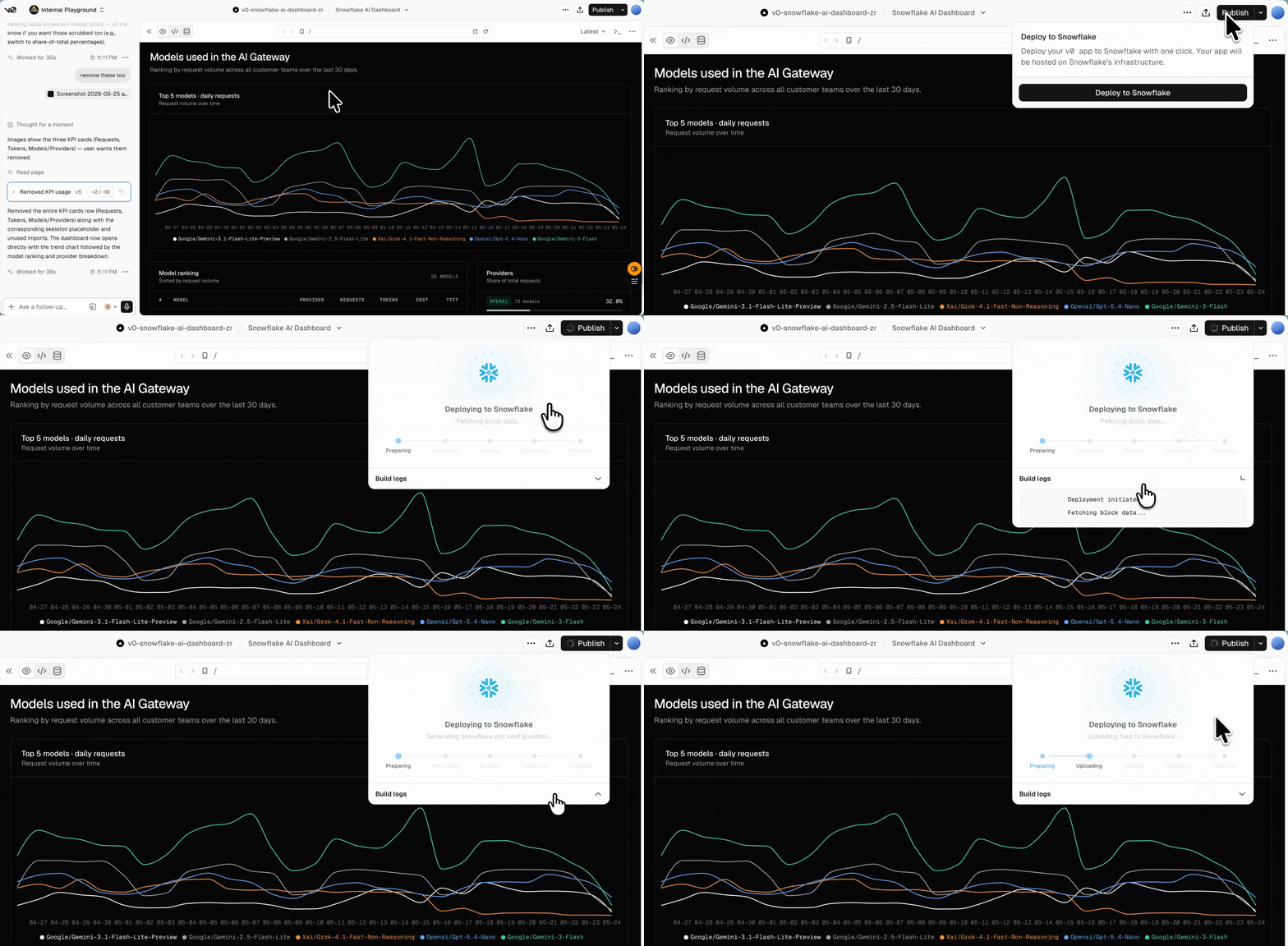
After deployment, the app is hosted on Snowflake infrastructure. Deployment logs and details are available from the publish popover when Snowflake returns them.
Troubleshooting
Snowflake is not available
If you don't see the Snowflake option in your team, the integration may not be enabled for your team yet or no account identifier has been added. Contact your team owner and ask them to complete Step 1 and Step 2.
I cannot see the tables I expected
v0 only sees the data available to your connected Snowflake role. Reconnect Snowflake and choose a role with the right warehouse, database, schema, and table permissions.
A teammate cannot preview my Snowflake app
Each member connects their own Snowflake account. Ask them to connect Snowflake from the prompt shown in the preview or from the Connect panel.
Deployment keeps failing during build
If a Snowflake deployment fails repeatedly, ask v0 to inspect Snowflake app events before trying another fix. Include the deployment error logs if you have them, then prompt v0 with:
My app is having an issue with deploying to Snowflake.
Use "snow app events" to check for issues on the Snowflake deployment.
Make changes needed to deploy the application.
Deployment fails after a Snowflake role change
Reconnect Snowflake and choose a role that has access to the required v0 integration procedures and deployment permissions. Then retry the deployment from the publish popover.